
Migrate from WordPress to a headless CMS in 3 easy steps

Cosmic CEO and chief LFG officer.
In this article, I'm going to show you how to migrate from WordPress to a headless CMS in 3 easy steps. To make this quick and simple, we will be using the Cosmic WordPress Importer extension to import posts using any available WordPress RSS feed.
This article assumes that you already have at least a cursory knowledge of both WordPress and headless CMS. If you don't understand these concepts, I recommend you learn about headless CMS and check out the WordPress vs Headless CMS comparison page.
TL;DR
Install the WordPress extension
View the source code to see how the extension is built
WordPress fanboys need not apply
WordPress powers about 40% of the web. That's a lot of websites that are suffering from the same problems. Some people love WordPress, this article is not for them.
This article is for people who are fed up with the issues that come with one of the world's most popular content management systems and are ready to go headless. If this applies to you, let's get started.
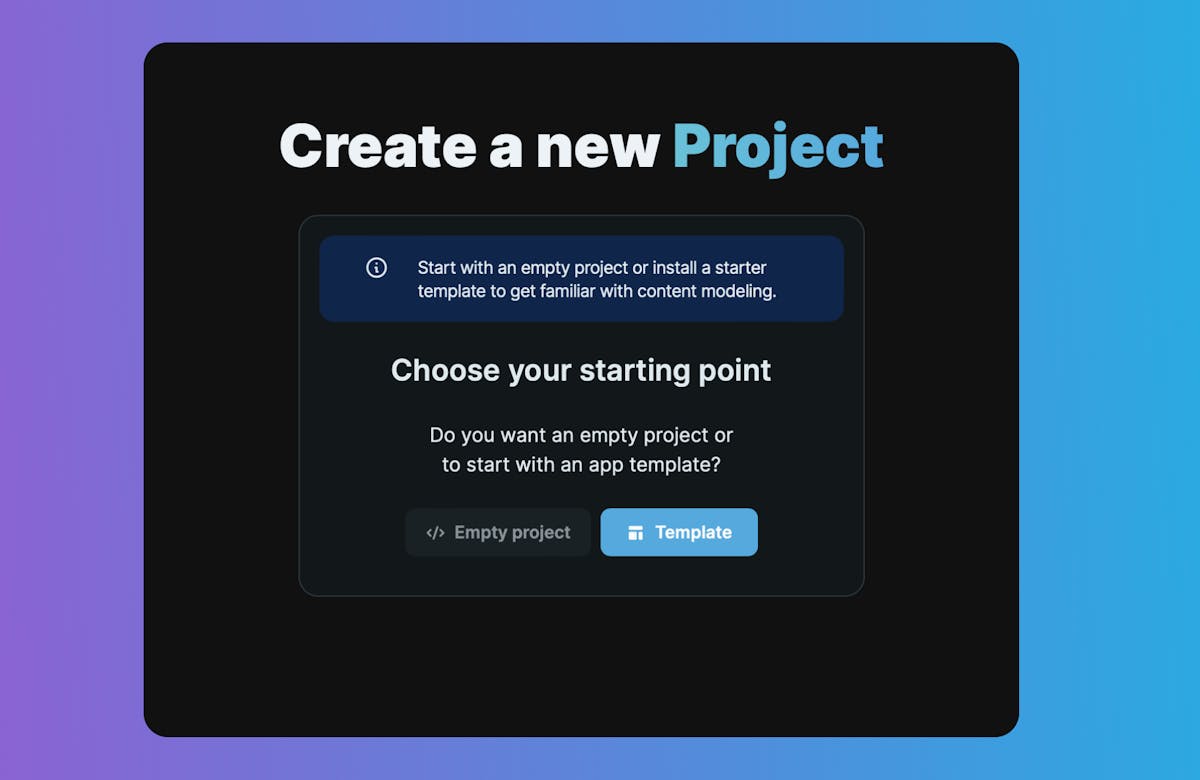
1. Create a new Cosmic project
First, create a free Cosmic account then set up a new project.
2. Install the Extension
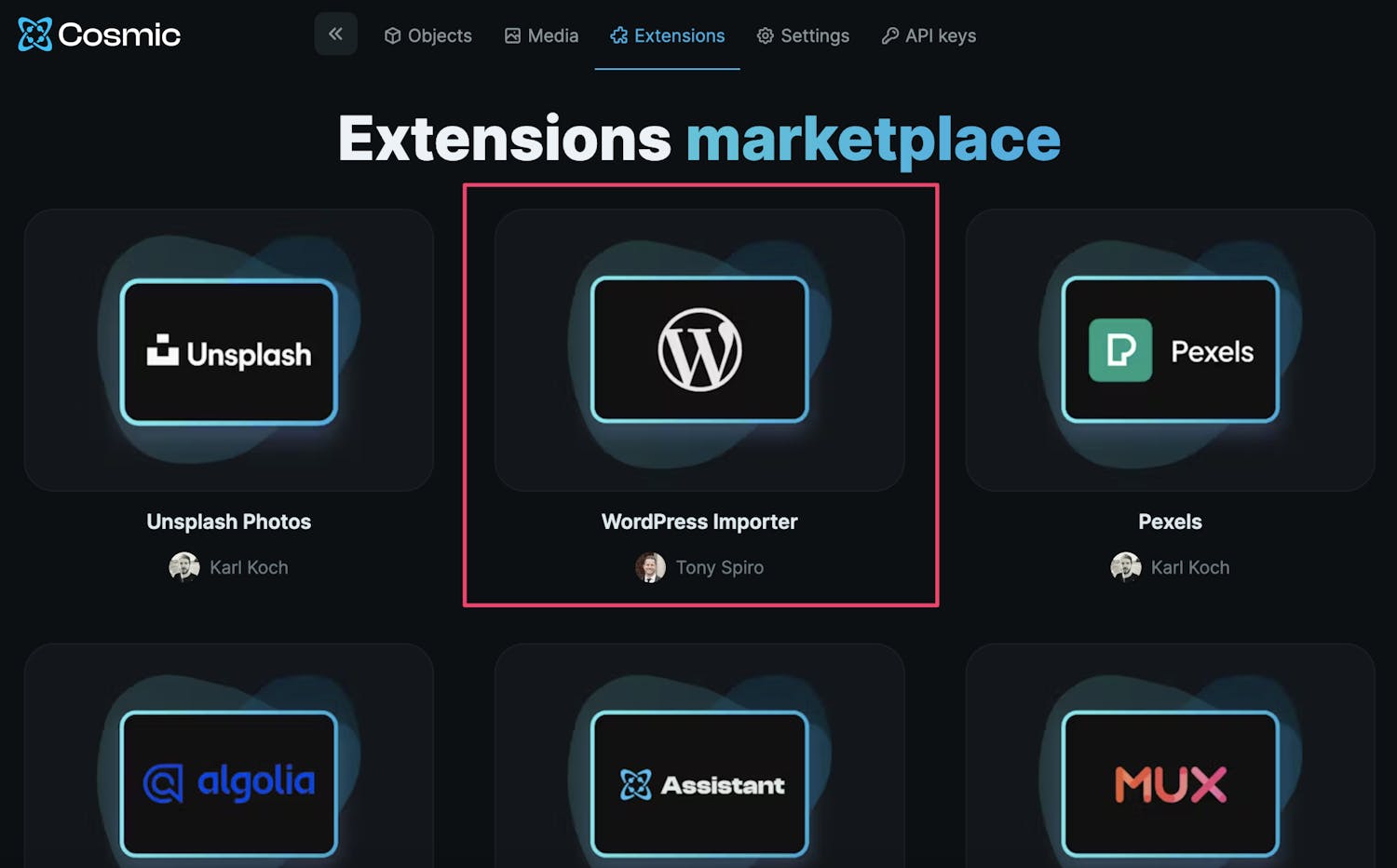
Go to the Extensions tab then find the Cosmic WordPress Importer extension and install it.
3. Migrate your content
After you install the extension, you will be asked to add a feed URL to import the posts. A feed URL is any publicly available WordPress RSS feed (something like https://github.blog/feed).
Select how may posts you want to install and click "Submit". Automatically, the WordPress posts will populate into Cosmic. Refresh the page to see links to the posts available in Cosmic.
Your posts are now available via a simple API endpoint. The JSON data payload will look something like this:
{
  "objects": [
    {
      "slug": "angels-who-help-you-fly",
      "title": "Angels who help you fly",
      "metadata": {
        "content": "<p>Paddling out at Pacifica Beach on an unusually warm, beautiful day, I noticed a...",
        "snippet": "Paddling out at Pacifica Beach on an unusually warm, beautiful day, I noticed a guy...",
        "author": "Jane Mariechen",
        "categories": "Surfing, California"
      }
    },
    {
      "slug": "trust-yourself",
      "title": "Trust yourself",
      "metadata": {
        "content": "<p>I sat on the sidelines with anxiety as I watched the...",
        "snippet": "I sat on the sidelines with anxiety as I watched the big waves from a distance....",
        "author": "John Marieche",
        "categories": "Surfing, Hawaii"
      }
    }
  ]
}
You can now deliver your content to any website or application. FREEDOM!

Bonus points
Luckily, the Cosmic WordPress Importer extension code is available open source so you can customize the data that it pulls in. You can also learn how to build your own Cosmic extension.
Conclusion
I hope you found this article helpful. Sign up for Cosmic and reach out to Cosmic support if you have any questions or need dedicated migration support.


